Configuring the RTMP Streamer actor to connect with YouTube Go Live requires a few simple steps on the YouTube Studio web page and the setting of two inputs in the Isadora RTMP Streamer actor. You will need to set both the 'server url' input and the 'stream key' input of the actor, both using the information provided in the YouTube Studio interface.
Create a YouTube Live Stream
- First, ensure you are logged into your YouTube channel. Then open http://studio.youtube.com/
- You should be taken to the channel dashboard where you will see this button at the top:

- Click the Create button to open a menu that looks like this and choose Go Live:

- You will then be taken to the Live Streaming Management page, where you will see this menu on the left side:
 Click Stream to go to the Live Streaming section.
 - If this is your first time using Live Stream on YouTube you may be asked to verify your account, by verifying your phone number. Once you verify your number you will need to return to the YouTube Studio page, and click the Go Live icon again.
If this is your first time using Live Stream on YouTube you may be presented with a few options.- One is the option to stream "Right now" or "Later date": You can select either, but Right now will provide better real-time feedback about your setup.
- Another is option to select your source, either "Webcam" or "Streaming software": You should elect Streaming software.
- NOTE: new streaming accounts can take 24hrs to set up.

Connect Isadora to Your Stream
- A new page will load in the YouTube Studio after clicking Go Live which display a stream preview area as well as a number of stream settings.
- First, look lower on the page for the "Stream Settings" panel.
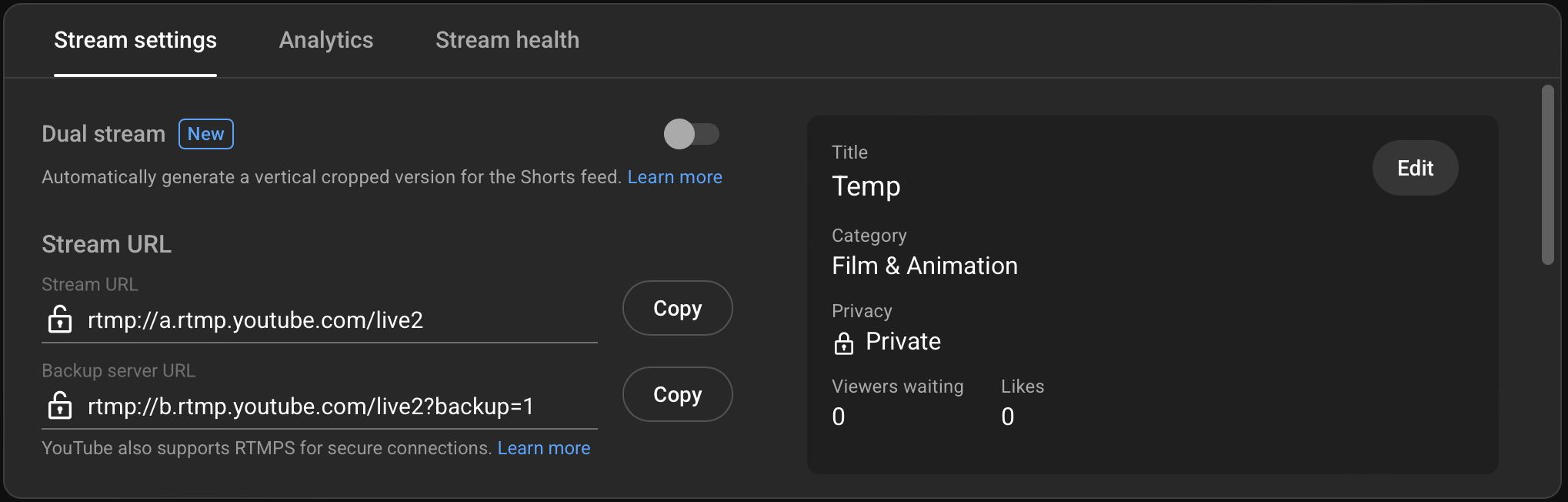
- After setting the Title and Privacy for your stream, click the Copy button to the right of the Stream URL. This copies the Stream URL to the clipboard.
- Switch to Isadora, click the 'server url' value input of the RTMP Streamer actor, and choose Edit > Paste.
- Switch back on YouTube and find the Stream Key popup in the preview area at the top of the page. Select the stream key you want to use, which must be configured to receive RTMP. (If ne can choose "Manage stream keys" from Stream Key popup menu if you need to review existing keys, or "Create new stream key" to create a new one.)
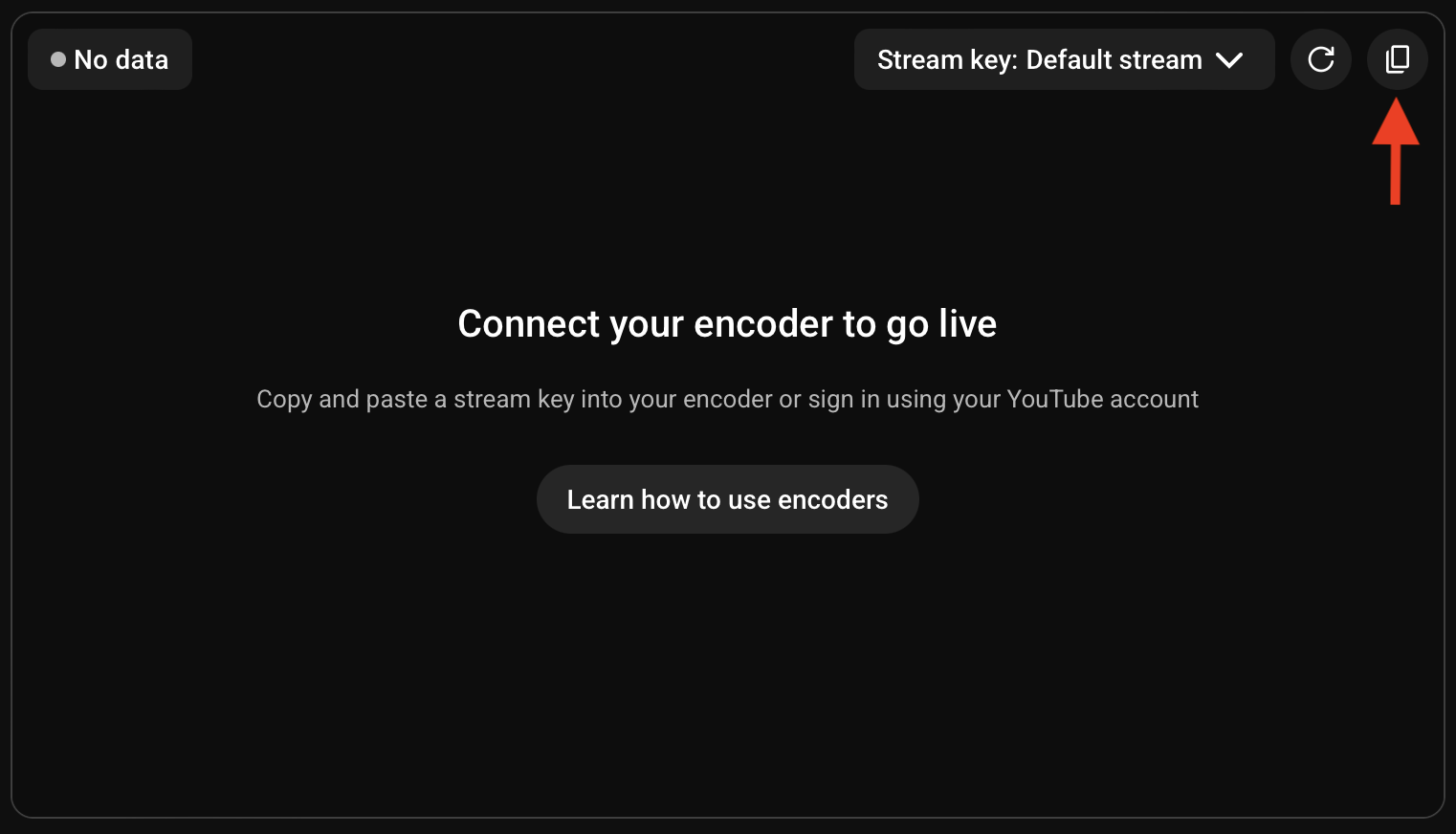
- After selecting the desired stream in the Stream Key popup menu, click the Copy button to the right of the Stream Key popup, as indicated by the red arrow in the image above. This copies the stream key to the clipboard.
- Switch back to Isadora, click the 'stream key' value input of the RTMP Streamer actor, and choose Edit > Paste.
- ⚠️⚠️ WARNING: KEEP YOUR STREAM KEY PRIVATE! ⚠️⚠️ You need keep your stream key private, otherwise others could stream to your channel without your permission! The stream key is hidden from view in Isadora, but can be read by others when someone clicks on the 'stream key' input value of the RTMP Streamer actor. If you need share a file that includes the RTMP Streamer actor, you must be sure to clear the 'stream key' input first!

- Keep the YouTube webpage open. The video panel of the webpage should say "Connect your encoder to go live". Once you activate the RTMP streaming in Isadora the video image will appear in this video panel (within a few seconds, depending on network speeds)
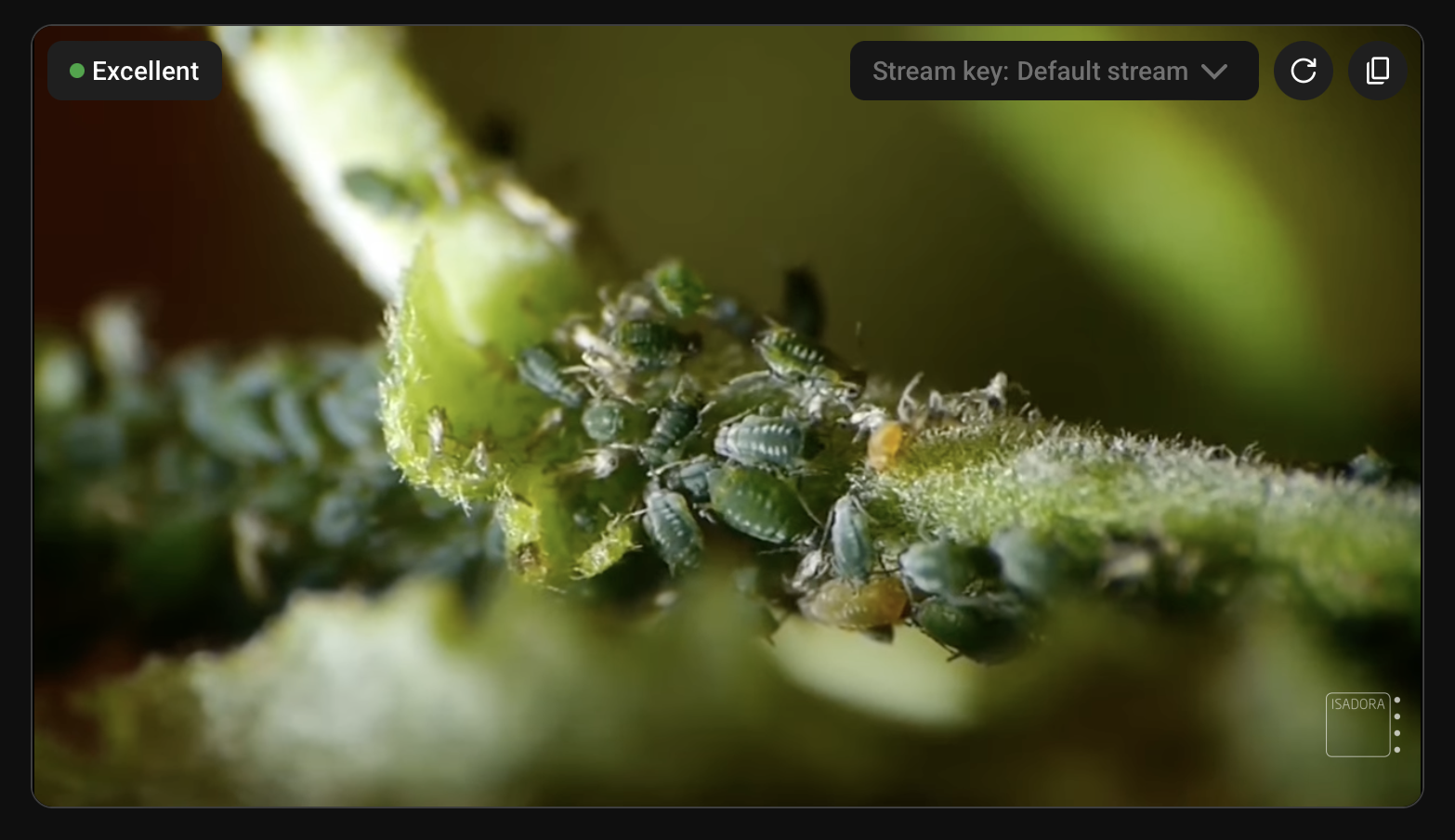 Above you can see in the YouTube Studio live stream preview, with the connection quality reported as "Excellent".
 - Depending on your age, the default privacy setting may differ. To set your privacy setting, click Edit in the YouTube Studio live stream interface.
- Make sure you adjust this setting to allow for the audience you expect
- Private allows only invited viewers to join the stream.
- Unlisted allows viewers who know the URL of the stream.
- Public allows anyone to view your stream.
Share the URL of Your Live Stream
When streaming, you'll want to share the URL of your live stream with others so they can watch. To do this, click the share button at the top right:

You will be presented with options to share the live stream URL to various social media services. You can also manually share the streaming URL using the Copy button at the right and giving it to whomever you wish.
